
Connect Naver Search Ads
When you connect your Naver Search Ads account, Run your campaigns end-to-end with just a chat with AI Get it all done in one go.
How to connect
In Data sources, Naver Search Ads Select .
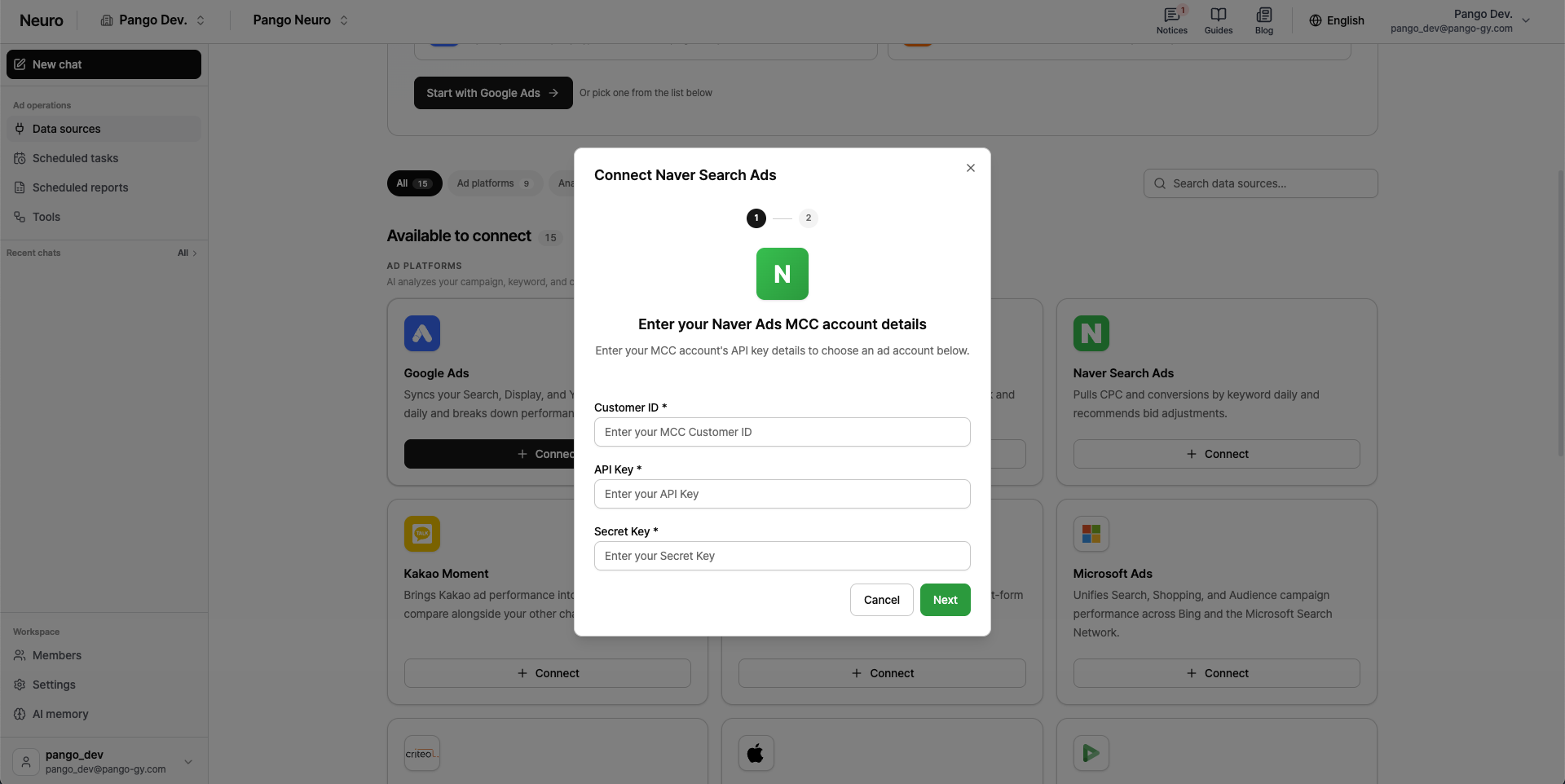
Enter the API key for an account with admin permissions — Customer ID, API key, Secret key.
How to get your API key is explained below What you’ll needSee details above.
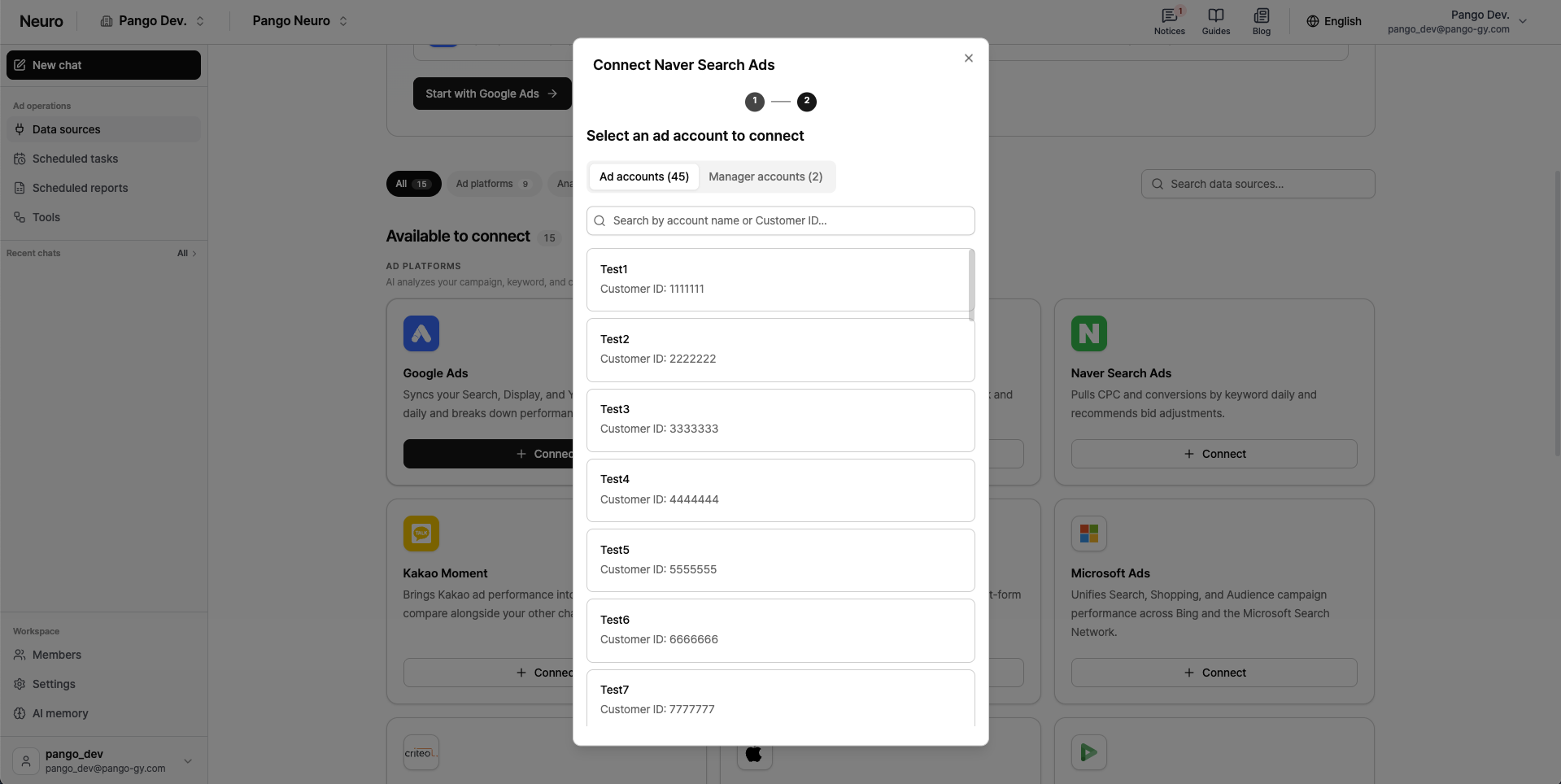
Ad account or Manager account In the tab, select the account you want to connect. For manager accounts, expand the list and choose a sub ad account.
What you’ll need
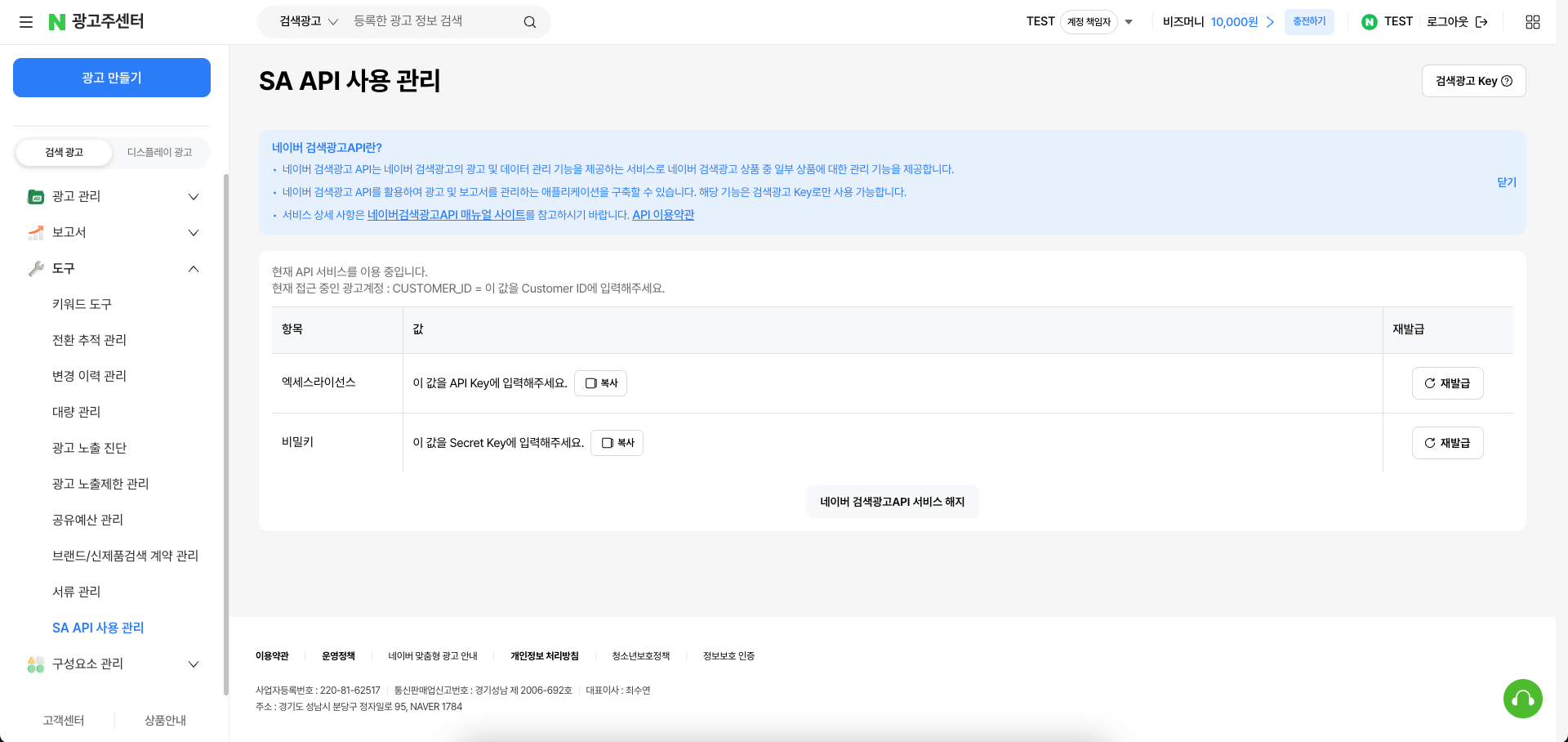
In Naver 광고주센터, Tools > Manage SA API usage Go to page.
Match the information shown on this page to Pango Neuro’s input fields as follows.
CUSTOMER_ID — Pango Neuro customer ID (numbers only)
Access license — Pango Neuro API key
Secret key — Pango Neuro secret key
If you’re not using the Naver Search Ads API service yet, you’ll need to apply for access first.
Notes
To ensure accurate analysis of your Naver Search Ads, please review the data collection policy below.
Available date range: You can view up to 1 year of historical data, counted from when the account was first connected.
Initial data optimization: When you first connect, we need some time for system optimization and data collection. This process Takes up to about 1 hourOnce data collection is complete, you'll be able to use the AI chat and analysis features without any issues.
Data refresh: We refresh data on a regular schedule, so there may be a delay before real-time campaign info and performance are fully updated.