
Connect LY Ads Display
Connect your Japan LY Ads (LINE ヤフー) display ad account with your Yahoo! JAPAN Business ID. Neuro will handle campaign, ad group, and creative performance analysis and optimization with AI.
What you need
A Yahoo! JAPAN Business ID that has access to your LY Ads display ad account
How to connect
In your workspace, go to Data sources and click the LY Ads (Display) card, then hit Connect.
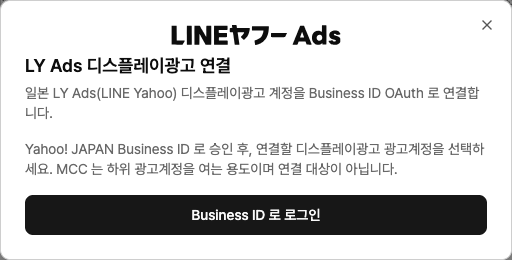
Click Sign in with Business ID to approve the popup. If you’ve already connected search ads, you can skip sign-in by choosing Continue with existing authorization
. From the ad account list, choose the account you want to connect and click Connect. MCC accounts are only for opening child accounts and can’t be connected directly.
Example prompts
“Summarize this month’s display ad impressions and CTR by creative.”
“Reduce budget for low-performing ad groups.”
Troubleshooting
No ad accounts show up to select
The authorized Business ID doesn’t have access to any display ad accounts. IDs with only search ad permissions can’t see display accounts.
The login window never appears
Your browser is blocking popups. Allow popups for this site from the icon in the address bar, then try again.
You see a message that the auth window was closed or timed out
Either you closed the window before finishing, or login took too long. The connection just wasn’t saved—nothing else is affected. Start the connection flow again from the beginning.