
Connect Display & Video 360
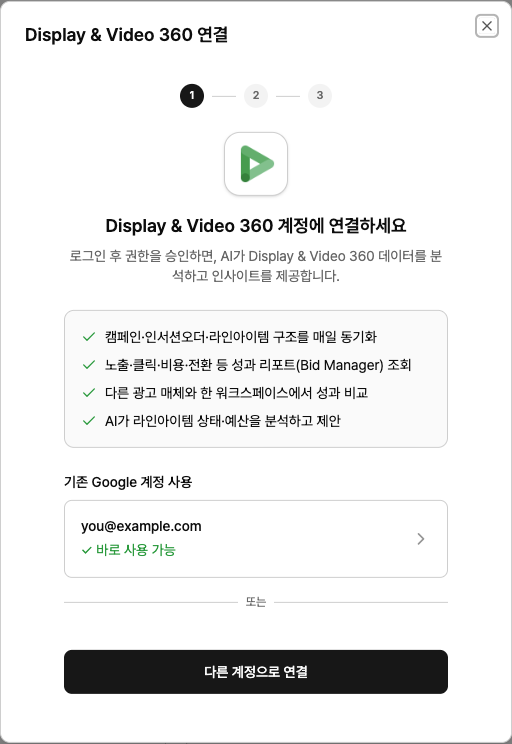
When you connect DV360, Neuro pulls your campaign → insertion order → line item hierarchy and Bid Manager report data (impressions, clicks, spend, conversions) so AI can analyze it alongside your other channels.
What you need
A Google account with access to the DV360 partner or advertiser
How to connect
In your workspace, go to Data sources and click the Display & Video 360 card, then hit Connect.
Click Sign in with Google in the popup and log in. On the consent screen, make sure you check the Display & Video 360
permission.Select a partner from the partner list, then choose the advertiser
level. If you use multiple advertisers, connect each one separately. The same Google authentication can be reused for other Google channels.
Examples of what you can do
“Summarize this month’s impressions, spend, and conversions by line item.”
“Show me insertion orders that are burning through budget too fast.”
“List line items with poor performance that should be paused.”
Troubleshooting
You see a message saying you must select permissionsThis happens when you skip checking the Display & Video 360
permission on the Google consent screen. Google will not grant any scopes you didn’t check, so sign in again and be sure to enable that permission before continuing.
The partner list is empty
Either your signed-in Google account has no DV360 access, or you only have advertiser-level access. Ask your DV360 admin to review your account permissions.
The login window doesn’t appear
Your browser is blocking popups. Allow popups for this site from the popup-block icon in the address bar, then try again.
You see a message that the auth window was closed or timed out