
Connect Slack
Once you connect Slack, you can send AI-generated reports, analysis, and alerts straight into your team’s Slack channels. This is send-only. It never reads your conversations.
What you’ll need
An account that can create apps in your Slack workspace — you don’t have to be a Slack admin, but depending on your org settings, an admin may need to approve app installation.
Permission in your Neuro workspace to add a connection
First — check if it’s already installed
Someone else on your team may have already installed the Pango Neuro app. Neuro cannot detect whether it’s installed in Slack — before receiving a bot token, we have no permission to look up anything about that workspace. Before creating a new app, run through the three checks below to avoid duplicate apps and extra approval steps.
If it’s already connected to another Neuro workspace — you’ll see it at the top of the connect modal under Use existing Slack connection. Just select it and you’re done. Note: this list only shows workspaces you have access to — if you’re only invited as an external member to a specific workspace, or your teammate belongs to a different organization, their existing connection won’t appear in your view.
If you created the app before — it will show up in the modal’s Check existing apps link (or on api.slack.com/apps). Don’t create a new one; just go to that app’s OAuth & Permissions page, copy the token, and skip ahead to Step 2.
If a teammate created it — it will not appear in your app list. Slack only shows apps you created or were added to as a collaborator. Ask that teammate to either connect it in Neuro themselves or add you in the Slack app’s Collaborators section.
Step 1 — Create a Slack app
In your Neuro workspace, click Data sources → Slack.
Once you’ve checked the points above, click Create Slack app in the modal. A new tab will open with the Slack app creation screen, and the app name plus the 3 required permissions will be pre-filled. (The View existing apps link next to it takes you to the list of apps you’ve already created.)
In the same screen, under Workspace, choose the Slack workspace where you’ll install the app, then click Next. (Next is only enabled after you select a workspace.)
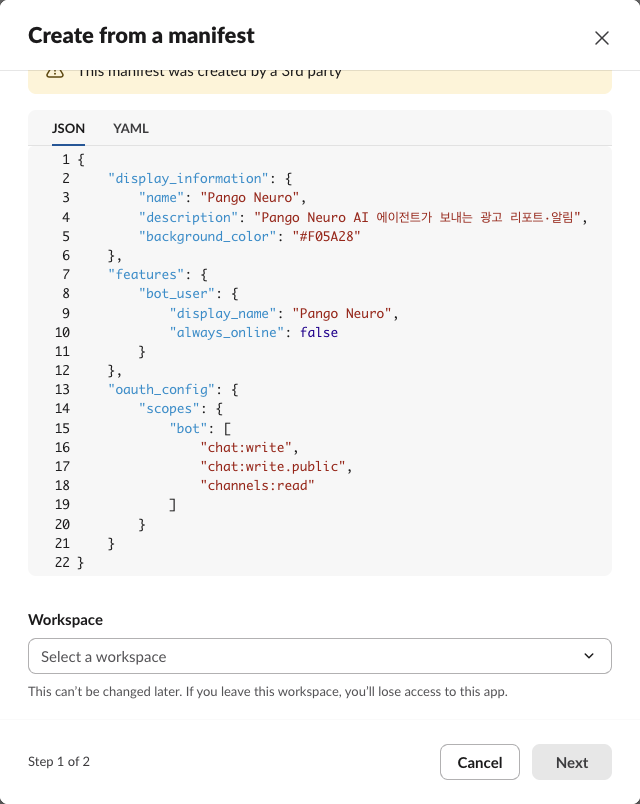
On the next screen (Review your app), review the permissions and click Create and Install. When the permission prompt appears, approve it. Creating the app and installing it to the workspace are both completed in this single flow.
Step 2 — Copy the bot token
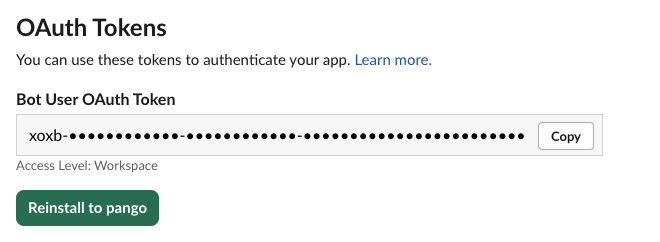
In the app page’s left-hand menu, open OAuth & Permissions.
Under OAuth Tokens, find Bot User OAuth Token and click Copy
to copy it. It’s the string that starts withxoxb-
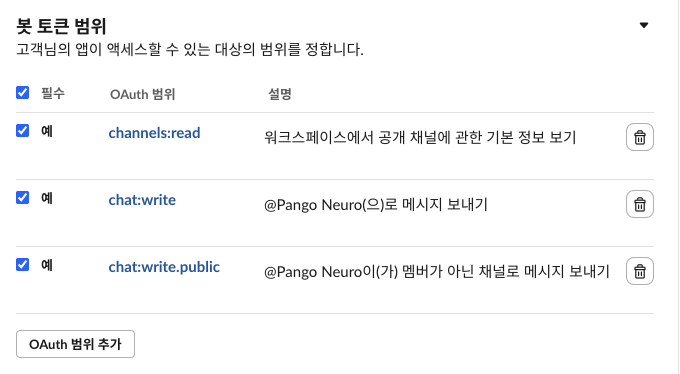
. you can confirm that the same 3 permissions are still set.Bot Token Scopes
Step 3 — Connect to Neuro
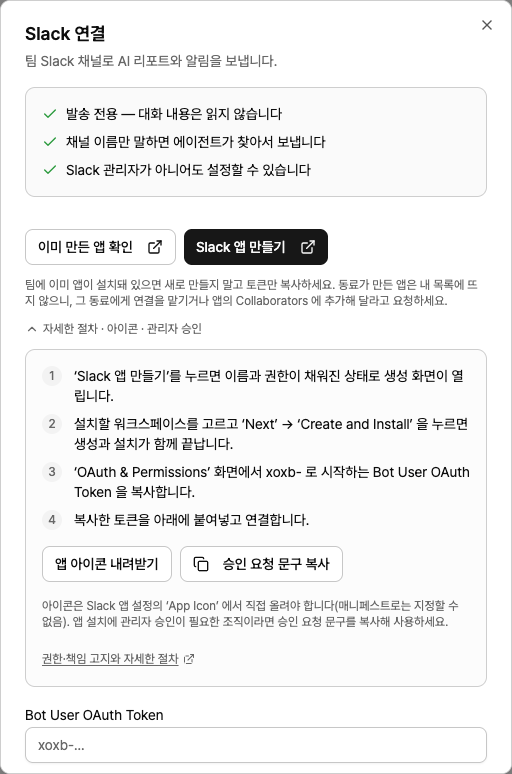
In the connect modal, paste the token you copied into the Bot User OAuth Token field, then click Connect.
Before saving, Neuro verifies with Slack that the token is valid and has all 3 required permissions. Only tokens that pass this check are encrypted and stored, and once saved, they’re never shown again.
(Optional) Upload an app icon
Slack manifests don’t include an icon field, so we can’t set it automatically. In the connect modal, click Download app icon to get the image file, then go to the Slack app page → Basic Information → Display Information → App Icon to upload it. This updates the bot icon shown in channels.
Requested permissions
chat:write— Send messages.chat:write.public— Send messages to public channels even if the bot hasn’t been invited. Saves you from manually inviting the bot to every channel.channels:read— Read the list of public channels (names and IDs only). Not conversation content. Used to resolve rough channel names like “marketing room” to the actual channel.
App ownership and responsibility
PanggoNeuro does not publish a public app on the Slack marketplace. Instead, each customer creates an app in their own workspace, and Neuro only uses that app’s bot token to send messages. This means granting, revoking, and auditing permissions is fully under the customer’s control.
App owner — The customer’s Slack workspace. The customer controls the app’s name, icon, permissions, and deletion.
Permission scope — The 3 permissions listed above. If you modify the provided manifest when creating the app, the resulting permission set may differ and is the responsibility of your workspace admins.
Token storage — PanggoNeuro encrypts and stores the token, scoped only to that workspace. After it’s saved, it’s never shown again in any UI or API response.
What gets sent — Neuro’s AI agent drafts the message based on your prompt. Messages can’t be unsent, so every send goes through an approval step first.
Revoking access — If you delete the app from the Slack app management page, access is revoked immediately. If you disconnect it from the Neuro Data sources screen, the stored token is deleted as well.
Audit trail — Messages sent by the bot stay in your Slack workspace, so you can always verify what was sent and when.
Workspaces that require admin approval
If your workspace requires admin approval to install apps, click Copy approval request text in the connect modal and paste that text into your request. It clearly lists the 3 requested permissions and confirms that “it does not read conversations”, which helps security review go faster.
Usage examples
Once connected, just ask in plain language in chat. The channel name doesn’t have to be exact — #, spaces, and case differences are auto-matched.
“Summarize this week’s ad performance and post it in the #마케팅 channel.”
“Find campaigns where conversions dropped sharply vs. yesterday and notify the ops room.”
Combined with scheduled tasks, you can auto-post reports to a channel every morning.
Troubleshooting
You see “This token does not have the required permissions”
The permissions listed in the app config and the permissions actually granted to the token can be different. If you add permissions but don’t reinstall the app, the token keeps the old, limited scope. Go to OAuth & Permissions → Reinstall to Workspace to reinstall, then paste in the newly issued token. If you have multiple apps, double-check that you’re using the token from the Pango Neuro app.
You see “This is not a bot token format”
You’ve pasted a user token (xoxp-). This integration only sends messages as a bot, so it requires a Bot User OAuth Token (xoxb-).
It says it can’t find the channel
Channel lookup uses Public channels only (except archived channels). To send alerts to a private channel, first invite the bot in that channel with /invite @Pango Neuro, then specify the channel ID (C…) in your request. You can find the channel ID in Slack by right-clicking the channel name → at the bottom of Channel details.
Not sure which Slack workspace it will use
If you’ve connected multiple Slack workspaces to one Neuro workspace, Neuro won’t pick one at random—it will ask you to choose. This prevents alerts from being sent to the wrong workspace.
Disconnecting Slack
If you disconnect Slack from the Neuro Data sources page, the stored token will be deleted. To fully remove the app itself, go to the Slack App management page and delete the app there. All permissions are revoked immediately once deleted.