
Connect Google Tag Manager
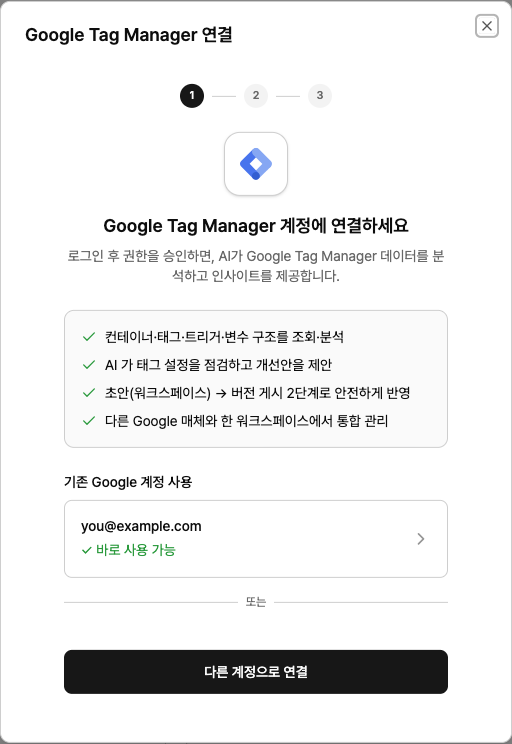
When you connect GTM, Neuro reads your container’s tag/trigger/variable structure so AI can review your setup and suggest improvements. Changes always go through two steps: draft (Workspace) → publish version.
What you’ll need
A Google account with access to the GTM account and container
How to connect
In your Workspace, go to Data sources and find the Google Tag Manager card, then click Connect.
Click Sign in with Google and, on the consent screen, grant access to Google Tag Manager
.Select your GTM account, then choose the container
Creating drafts and versions won’t affect your site, but publishing pushes changes to all users right away. To roll back, you must re‑publish a previous version. Always review changes before you publish.
Usage examples
“Summarize which conversion tags are set up in this container.”
“Review the trigger conditions for the GA4 event tags.”
“Check if any tags are firing more than once.”
Troubleshooting
You see a message saying you need to grant permissionsThis happens if you skipped the Google Tag Manager
permission on the Google consent screen. Google won’t grant unchecked permissions, so sign in again and make sure that permission is selected before continuing.
The container list is empty
Either the selected GTM account has no containers, or your Google account doesn’t have access to them. Ask your GTM admin to grant you account and container permissions.
The login window doesn’t open
Your browser is blocking pop‑ups. Allow pop‑ups for this site from the icon in the address bar, then try again.
You see a message that the auth window was closed or timed out