
Connect Notion
When you connect Notion, Neuro can read and use the pages and databases you share for analysis, then write the results back into a Notion page.
What you’ll need
A Notion account with access to the page you want to connect
How to connect
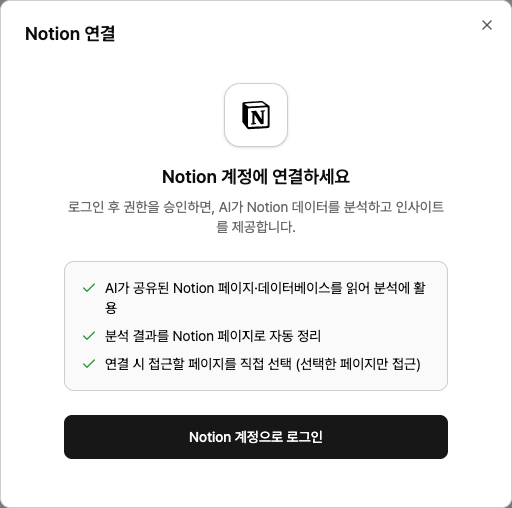
In your workspace Data sources screen, click Notion and then Connect.
Click Sign in with Notion
and log in from the popup window.On the Notion authorization screen, select the pages you want to grant access to
. Neuro can only access those pages and their sub-pages.If you want to add more pages later, open Notion Settings → Connections
and update the page access scope for the Pango Neuro connection.
Examples
“Read the campaign brief on this page and draft ad creatives.”
“Summarize this week’s performance and organize it into a Notion page.”
Troubleshooting
Neuro can’t find my page
You likely didn’t select that page during setup. In Notion Settings → Connections, add that page to the Pango Neuro connection’s access list.
The login window doesn’t appear
Your browser is blocking popups. Allow popups for this site from the popup-block icon in the address bar, then try again.
I see a message that the authorization window closed or timed out
You closed the window before finishing, or the login took too long. The connection just wasn’t saved—nothing else was affected. Start the connection process again.If you run into any issues while connecting or using the integration, contact us at pango_plat@pango-gy.com