
Connect Google Search Console
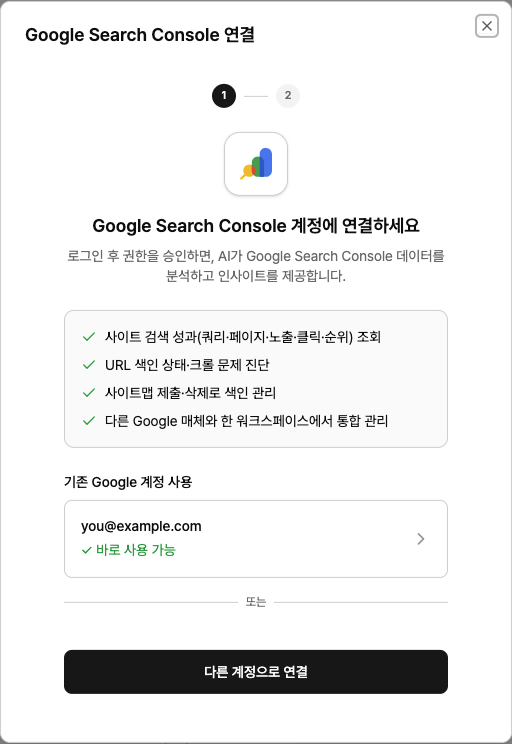
When you connect Search Console, Neuro’s AI pulls and analyzes your search performance (queries, pages, impressions, clicks, rankings) and index status. You can also manage indexing by submitting or removing sitemaps.
What you’ll need
A Google account with access to the Search Console property you want to connect
How to connect
In your workspace, go to Data sources and find the Google Search Console card, then click Connect.
Click Sign in with Google, then on the consent screen, make sure Search Console
access is checked.From the site (property) list, choose the property you want to connect. Your permission level
Domain properties and URL-prefix properties are treated as different properties. Make sure you select the same type as the one you actually analyze, or your data won’t match.
Examples of what you can ask
“Find queries where impressions increased versus last month but clicks went down.”
“List queries ranking outside the top 10 that still have room for improvement.”
“Check the index status for this URL.”
Troubleshooting
It says I need to “check the permissions”You likely skipped checking the Search Console
permission on the Google consent screen. Google will not grant any unchecked permissions, so sign in again and make sure that permission is selected before continuing.
No sites are showing in the list
The signed-in Google account doesn’t have access to any Search Console properties. Ask the property owner to add you as a user.
The login window won’t open
Your browser is blocking pop-ups. Allow pop-ups for this site from the pop-up blocker icon in the address bar, then try again.
It says the auth window was closed or the session timed out