
Connect BigQuery
Once you connect BigQuery, you can analyze tables that only lived in your own databases — like orders, customers, and logs — together with ad performance. You’ll be able to ask questions right in chat that media data alone can’t answer: real-sales ROAS, new vs. repeat purchase, performance by member tier, and more.
SELECT queries. Any write, update, or delete is blocked at the server level. Queries are also limited to the datasets you explicitly choose during setup; even if AI “knows” the name of an unselected dataset, it cannot open it.What you’ll need
A Google account with access to the BigQuery data — you’ll sign in with this account when you connect.
Read permission on the datasets to query — at least BigQuery Data Viewer (
roles/bigquery.dataViewer).BigQuery Job User permission on the project where queries will run — BigQuery Job User (
roles/bigquery.jobUser). BigQuery always runs queries in some project; without this role, you might see the data but still won’t be able to query it.BigQuery API enabled on that project — if the project has ever used BigQuery in the console, this is already on.
Step 1 — Connect your Google account
In your workspace, go to Data sources, find the BigQuery card, and click Connect.
Click Sign in with Google
and log in with an account that has access to the data.On the consent screen, make sure the BigQuery permission scopes are checked.
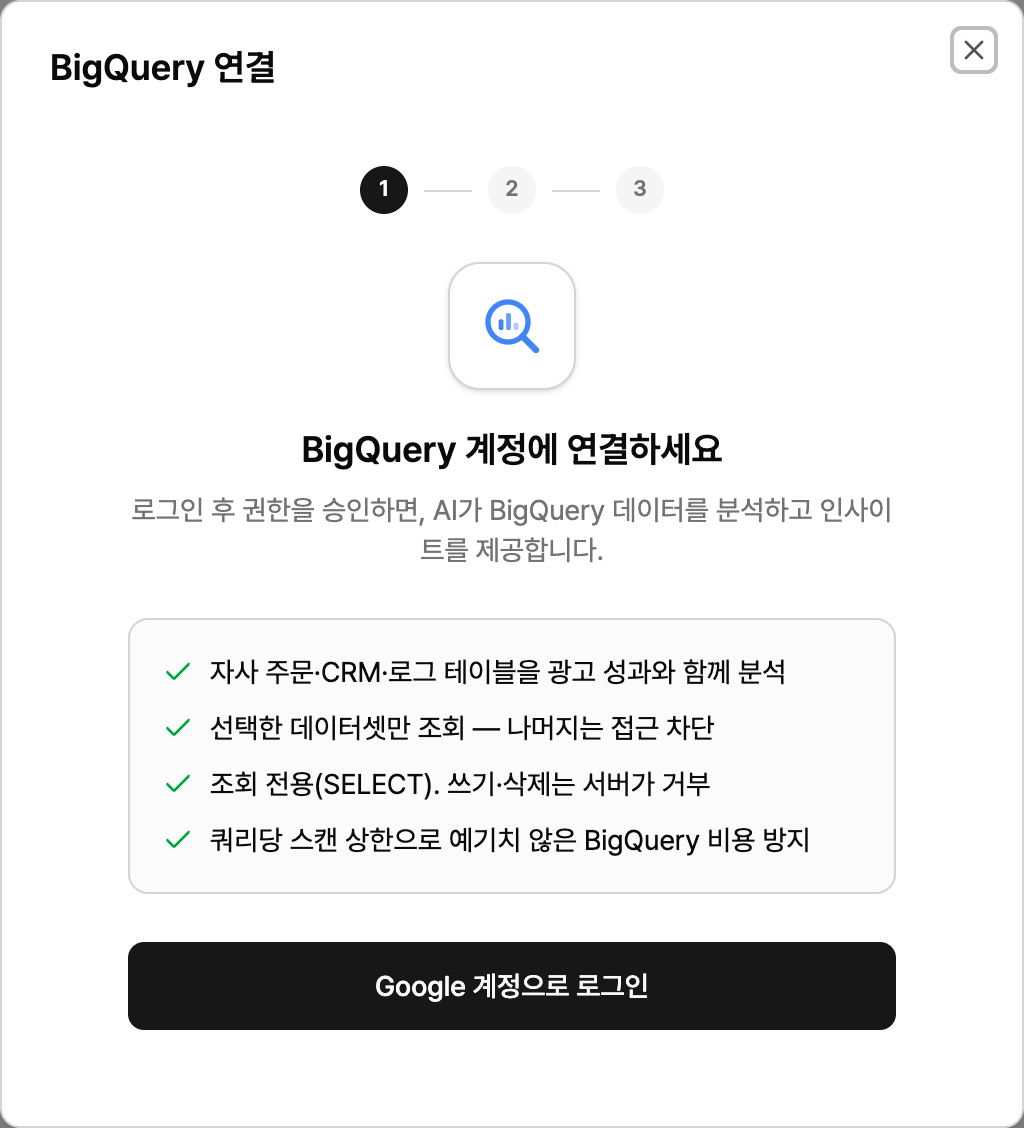
BigQuery access is a new permission scope, so you may see an extra consent prompt — this is expected.
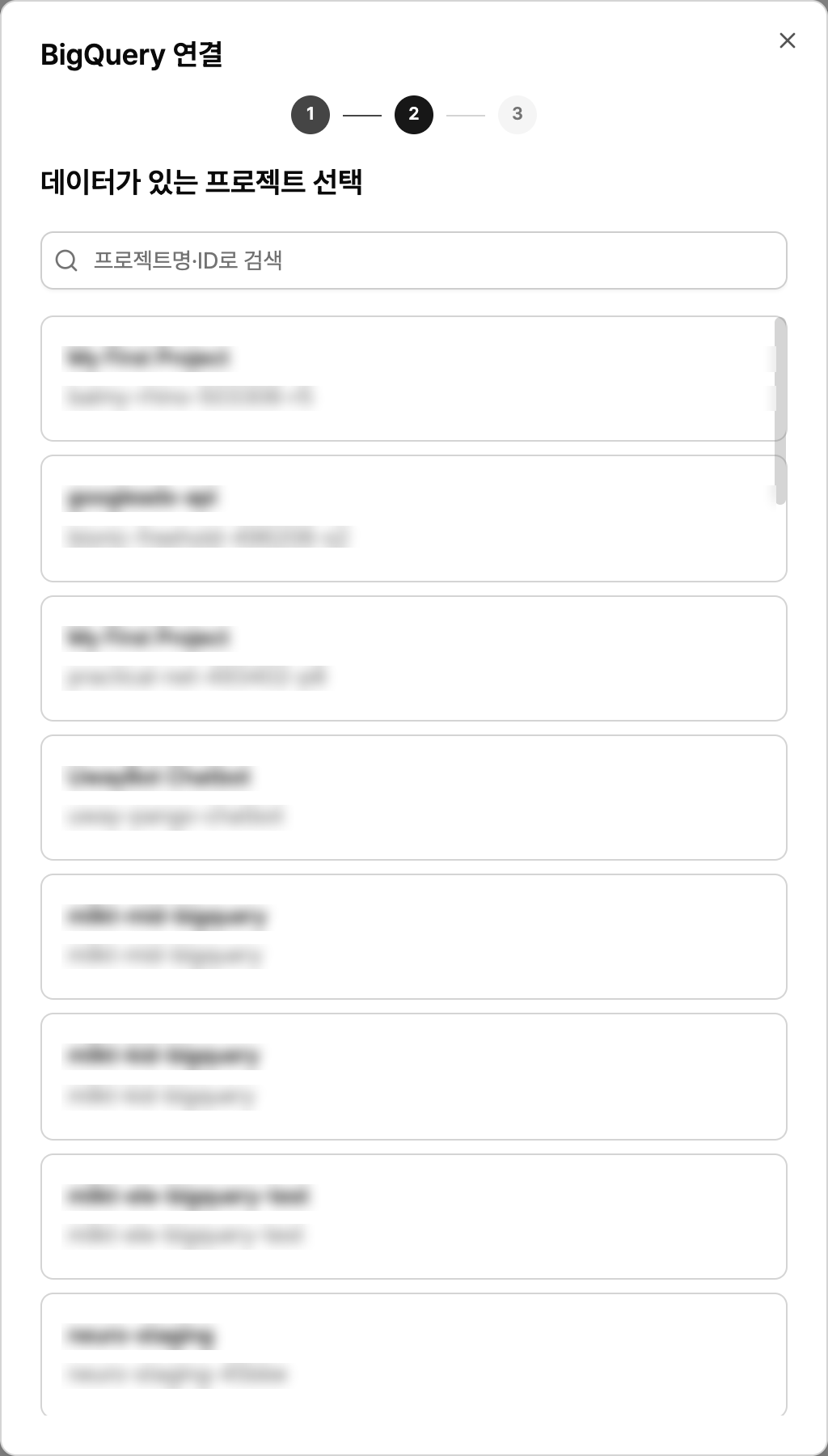
Step 2 — Choose a projectSelect the project that contains your data. This is also the project where queries will run and where scan costs will be billed.will be used.
Step 3 — Choose datasets and set scan limits
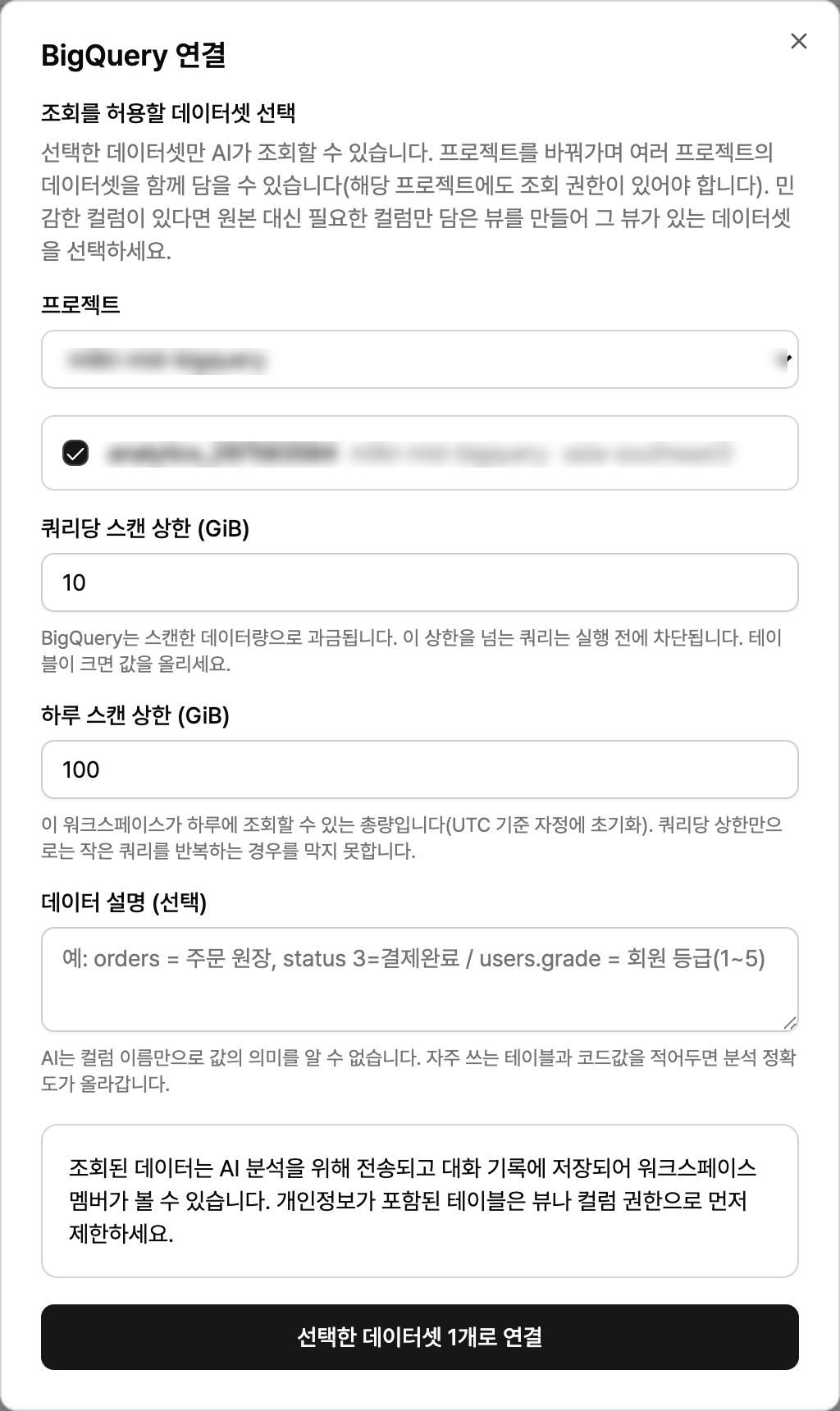
Select the datasets that can be queried. By default, nothing is pre-selected — only what you choose will be accessible.
Use the top dropdown to switch projects and include datasets from multiple projects in one connection (you must have query access to each project).
Per-query scan limit (GiB) — default
10. Queries that exceed this are blocked before they run. Increase it if your tables are large.Daily scan limit (GiB) — default
100. This is the total volume the workspace can scan per day, resetting at midnight UTC. It’s used together with the per-query limit so repeated small queries can’t spiral costs.Data description (optional) — Document what your frequently used tables and code values mean (up to 2,000 characters). From column names alone, AI can’t know what
status = 3means. Example:orders = order ledger, status 3 = payment complete / users.grade = membership tier (1–5)Click Connect with N selected datasets to finish.
Editing settings after connecting
On the BigQuery card for that connected service, click the Settings (gear) icon to change options without reconnecting.
Add or remove datasets that can be queried
Per-query / daily scan limits
Data description
The daily limit must be greater than or equal to the per-query limit to save. If your daily limit is smaller than a single query, every query on that connection would be rejected from the start.
Usage example
Once connected, just ask in natural language in chat. AI will look up the allowed datasets and table schemas itself, so you don’t need to memorize table paths.
“Show me the datasets and tables I can access right now.”
“Show me the schema for the orders table and a recent data sample.”
“Join last month’s order data with ad spend by channel and calculate ROAS based on actual revenue.”
“Split out new vs. returning customers and compare channel contribution for each.”
“Show purchase conversion rate by member tier, broken out by campaign.”
Troubleshooting
You see “You need to check your BigQuery permissions.”
This happens if you skipped the BigQuery scope on the Google consent screen. Google won’t grant any unchecked permissions, so log in again, tick the BigQuery option, and continue.
You see “No accessible BigQuery projects found.”
Either the signed-in Google account doesn’t have access to any project using BigQuery, or BigQuery API is disabled on that project. Most of the time it’s just the wrong account (e.g., personal instead of work), so check that first. If the list is still empty, ask your Google Cloud admin to give you project access and enable the BigQuery API.
You see “You don’t have permission to run queries in this project.”
You have permission to view the data, but not to run queries. Assign the connected Google account the BigQuery Job User (roles/bigquery.jobUser) role on that project and try again. The Data Viewer role alone is not enough to query.
You can’t select datasets from different regions together
This is a BigQuery limitation (for example, tables in asia-northeast3 and US can’t be joined in a single query). Only pick datasets in the same region. If you must analyze data across regions, you’ll need to replicate one side to the other region to standardize regions — you can’t solve this by adding a second BigQuery connection, since each workspace supports only one.
Your query is blocked for exceeding the scan limit
First, try tightening the query scope — shorten the date range, filter on a partition column (e.g., date), or select only the columns you need instead of using SELECT *. This can dramatically reduce scan volume, because BigQuery only bills for the columns you read. If that’s still not enough, increase the per-query limit in Settings.
You’ve hit the daily scan limit
It resets automatically at midnight UTC (09:00 Korea time). If you need to keep working before then, increase the daily limit in Settings.
AI keeps misinterpreting what certain column values mean
In Settings, use Data description to document what each table and code value means. This description is sent to the AI with every query, so it noticeably improves analysis accuracy. Keep it concise and focus on frequently used tables, because very long descriptions increase the cost of each query.
AI says it can’t see a specific dataset
That dataset wasn’t selected when you first connected. Add the dataset from Settings — changes apply immediately and you don’t need to reconnect.