
Chat options
The input field’s ⋯ (More) menuUse this to configure how the AI analyzes data and responds.
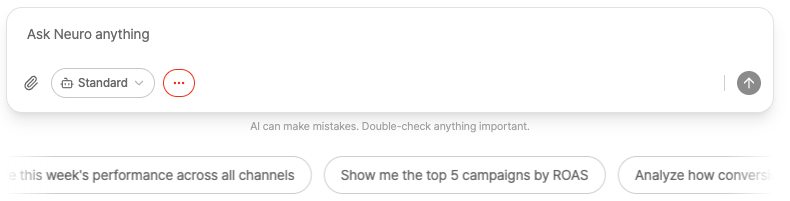
Connected Data
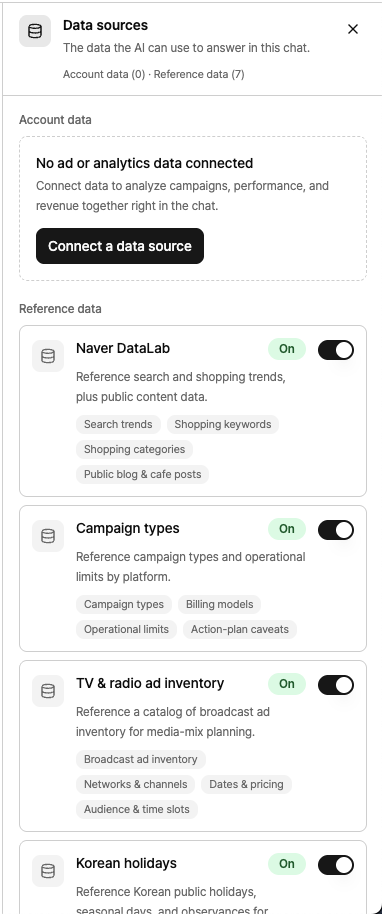
Choose which ad platforms to connect (Google, Naver, Meta, etc.) and whether to enable the core tools.
Action settings
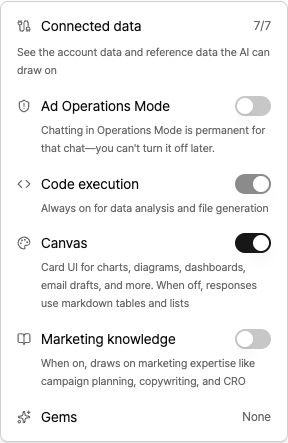
Ad Operations Mode
On Edit campaigns, change budgets, etc. Live media buyingYou can ask AI to do this for you. When AI suggests changes, they’ll appear on screen [Approved/Rejected] cardwill be shown, and your changes will only go live after you give final approval.
OFF (default): Safe mode only reads and analyzes your data; it never makes changes to your ads.
Run code: To analyze your data and generate files (Excel, PDF, etc), Always onis already set.
Canvas
On (default): Charts, tables, KPI cards, diagrams, etc. Visual card UIto give you deeper, more well-rounded answers.
Off: Get clean, structured answers in text and markdown-based list format.
Marketing knowledge: Campaign strategy, ad copywriting, CRO, and more Marketing expertiseAnswering based on this reference.
Gems: Frequently used Guidelines (roles, tone, rules)Save and apply it to your chat.
Choose model
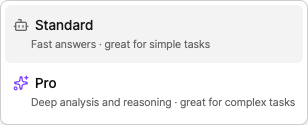
Basic — Fast responses. Best for quick, simple tasks.
Pro — Deep analysis and reasoning, ideal for complex workflows.